How to get Google Latitude running in the background on your iPhone
July 26, 2009
By Marc Tytus
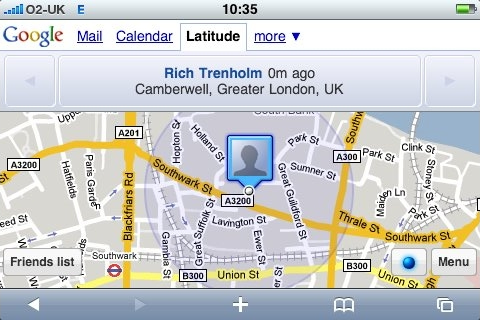 photo credit: CNET UK
Google Latitude was recently released and it's the best thing ever for sharing your location with close friends and family. Google made the free service available to Blackberry and Android users first (and it only took a week for a million of them to sign up and, incidentally, start catching criminals.)
Up until this week, users had been anxiously awaiting the release of Google Latitude for iPhone. Unfortuantely not in the form of a native app, Google Latitude was released as a "web app," only accessible through Safari, iPhone's web browser. Pretty cool—web apps are still able to offer impressive functionality (case in point Gmail for mobile)—but as a web app, iPhone users are only able to update their location by manually accessing the Google Latitude website. Blackberry's Google Latitude app is always running and updating the user's location in the background. This unfortunate loss of functionality shouldn't be blamed on Google nor Apple: iPhone applications aren't allowed to run in the background to preserve battery life.
the solution
The question to ask is whether running Latitude (ie. Safari) in the background would cause a significant drain on the iPhone battery. Happily, through experience, I can report that the affect on battery life is not noticeable. So the solution is simple: allow Safari, and thus Latitude, to run in the background (even while the iPhone is locked and in your pocket.)
You might have already guessed that forcing the iPhone into enabling this functionality requires a jailbroken iPhone. If your phone isn't already jailbroken, download redsn0w and get'r done. (I'd say it's worth it, just for Latitude.)
(iPhone 3GS owners: As of this writing it is impossible for you to jailbreak your phone.)
On a jailbroken phone, launch the Cydia application then search and download Backgrounder, which will enable you to run applications in the background. If all goes well you will end up installing the extension and restarting your springboard. You'll see a new app, Backgrounder, on your home screen that contains some documentation but go ahead and launch Latitude right away (open Safari and visit google.com/latitude). Once you've got Latitude open, press and hold your home button to enable Backgrounder. You're done! Now, whenever you press your home button to close Safari, it will be discreetly running in the background as if you were actively browsing the Latitude site.
some things to note
- Latitude must be the foremost tab in Safari when you "minimize" it. The iPhone doesn't ever process content on other tabs, like a desktop version of the browser would.
- If you turn off your iPhone, you'll have to relaunch Latitude and ensure Backgrounder is enabled per the instructions above. From Backgrounder: "Note that only the current instance will be affected; if the application is terminated and relaunched, the new instance will not have backgrounding enabled."
- Google Latitude is only accessible on your computer through iGoogle (google.com/ig); it doesn't have its own standalone site that allows you to access your map.
- When adding new users to share your location, consider your privacy options: do you really want this person to be able to view your exact location (down to a couple of meters) twenty-four hours a day? You have the option to limit their view to city-level, which is still pretty damn cool.
At some point far down the road, Apple might allow one or two applications to legitamately run in the background (probably for upgraded phones.) But for now, this is the only way to enable the continuous updating of your Google Latitude location through an iPhone.